First login after the change
Case 1: You use your own personal computer
Sign out of Microsoft Teams (profile picture → "Sign out") and sign back in at teams.cloud.microsoft using your new username and current password. You don't need the rest of this guide.
Case 2: You use a Kry-issued (managed) laptop
Your computer is managed by our IT team. On your first login after the change, you need to use "Other user" (not your existing profile) on the Windows login screen. This guide walks you through it step by step, with screenshots.
The rest of this guide covers Kry-managed laptops (Case 2), since most UK clinicians use one.
Only the part after the @ changes — before the @ stays the same as your current username. For example: joe.bloggs@ad.livi.co.uk becomes joe.bloggs@kry.co.uk.
Password stays the same.
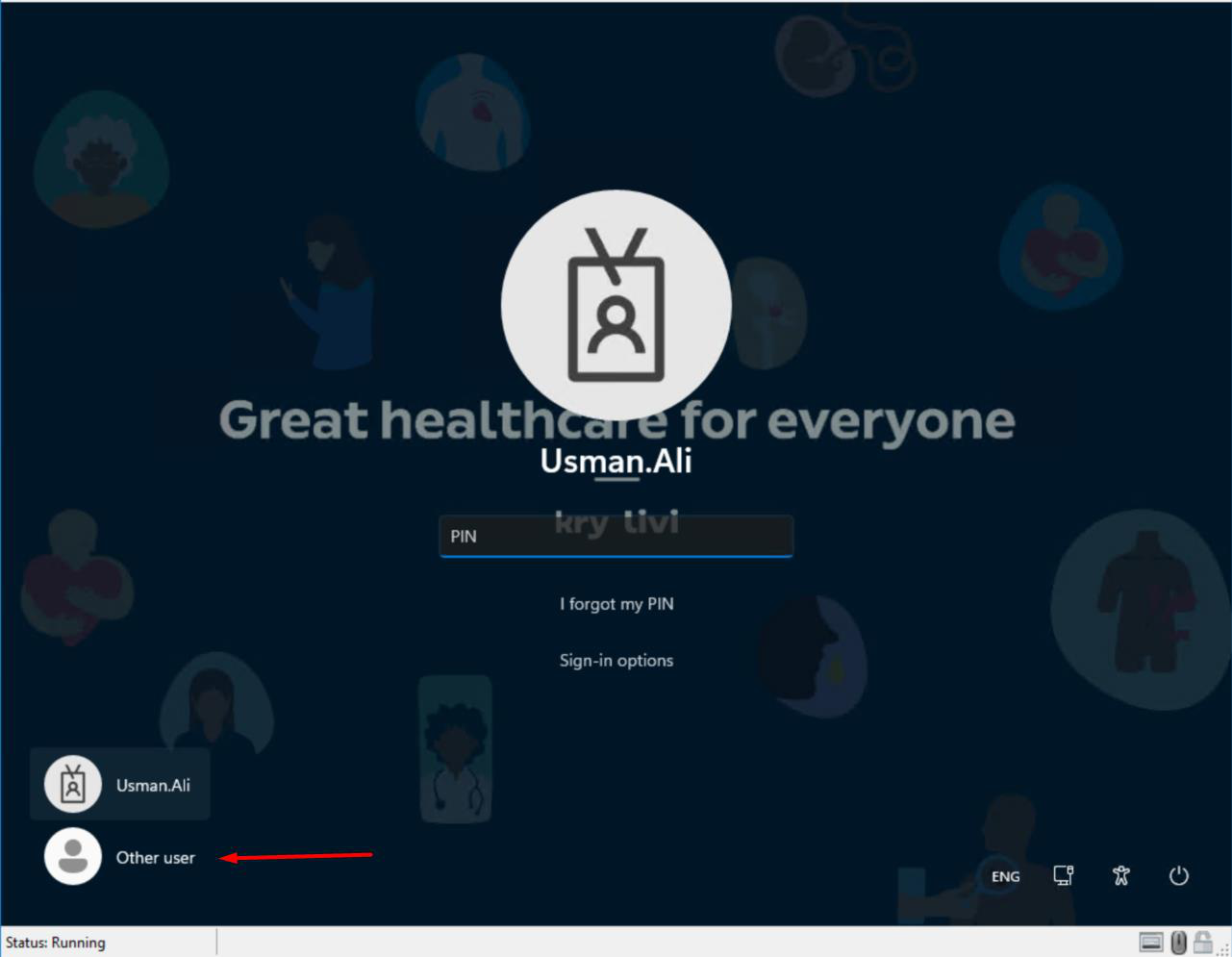
Don't tap your existing profile tile. If you do, the login will fail. Always use "Other user" at the bottom-left of the login screen for your first sign-in.
Sign out of your computer
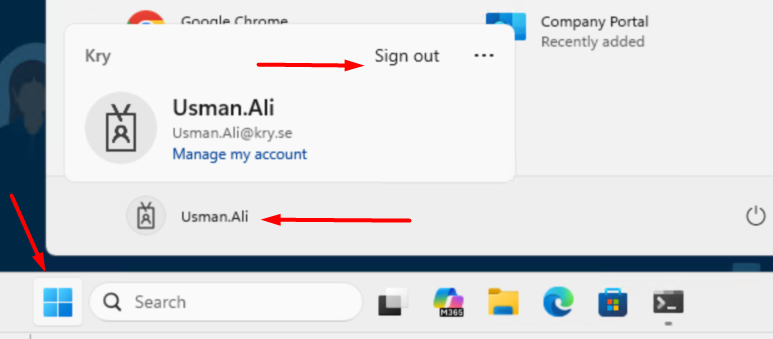
- Click the Windows (Start) button (bottom-left corner of your screen).
- Click your profile name / icon at the top of the Start menu.
- Select "Sign out".
- Wait until the Windows login screen appears.
Click "Other user"
- On the login screen, look at the bottom-left.
- Click "Other user" (this is the key step — do not click your existing profile tile above it).
Enter your new credentials
- In the Email address field, enter your new username:
firstname.lastname@kry.co.uk. - Enter your existing password.
- Press Enter to sign in.
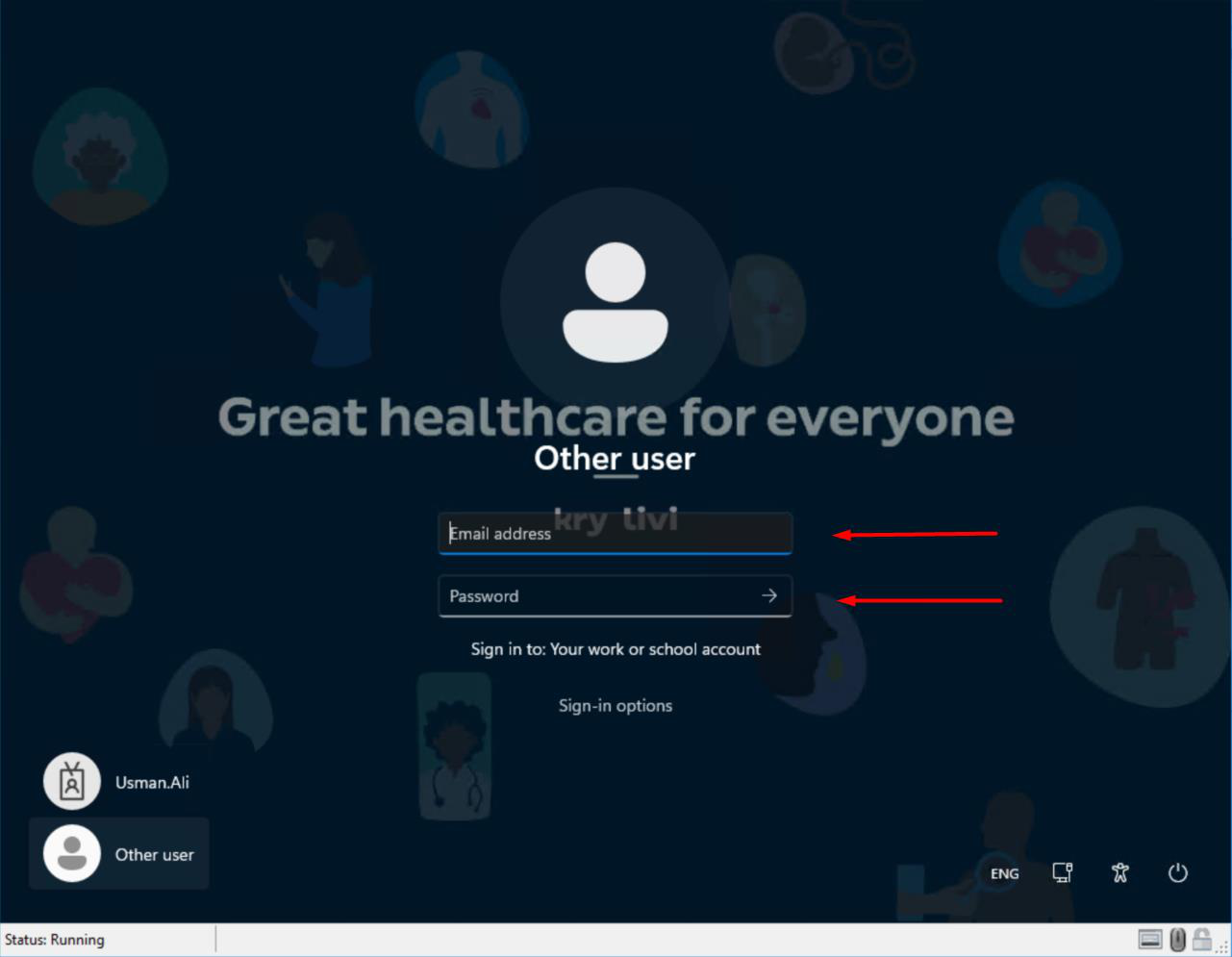
@kry.co.uk) + your existing passwordYour Windows PIN (used to unlock your laptop) isn't affected by this change — no need to reset it.
What changes — and what doesn't
Most of your apps will continue working with no action needed. A small number of systems IT doesn't control may still show your old username — this is expected.
Working as normal
- Microsoft Teams — chats, calls, meetings
- Outlook — email and calendar
- SharePoint & OneDrive — files and folders
- MyApps / SSO — most enterprise applications
- VLS — handled automatically via SCIM
- Quinyx — scheduling
- Workday — HR system
Other apps via MyApps/SSO (Zendesk, WinningTemp, Anaplan, Contentful, WorkRamp, Sana, Printer Logic, XM Fax, TeamTailor) continue working with no action needed.
May still show your old username
- Third-party systems you sign into with a separate username and password
- Older bookmarks that include @ad.livi.co.uk in the URL
If something stops working (rather than just showing the old username), email username-update@kry.co.uk and we'll investigate.